

Describe the process in plain language and get an editable flowchart: what to write, how it works in SketchMind, and when a flowchart is the wrong shape.
Nobody sits down wanting to make a flowchart. You want to make a decision visible: how a request gets approved, what happens when a payment fails, where a candidate drops out of the hiring funnel. The flowchart is just the format, yet in most tools the format is where all your time goes.
Short answer: To create a flowchart by describing it, write the process in plain language: the trigger, the steps in order, each decision as a yes/no question, and the possible end states. An AI flowchart tool turns that text into a diagram you can edit. In SketchMind you pick Flow in Create with AI, and one editable flow frame lands on your board in about 20 seconds.
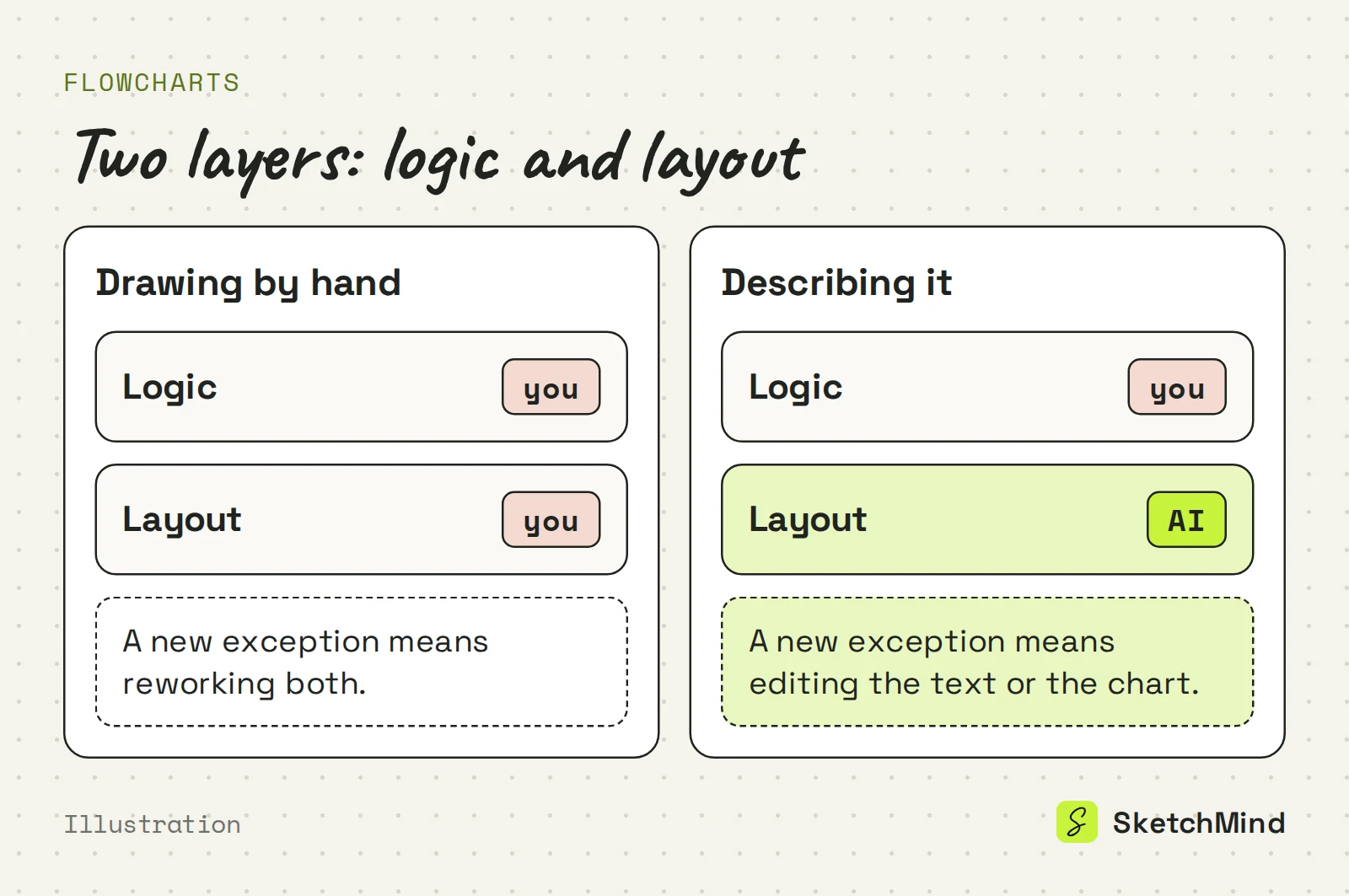
Drawing is slow because you handle two layers at once: the logic and the layout. The logic is the steps, decisions and branches. The layout is where every box sits so the logic stays readable. Traditional diagram tools make you do both, and every time the logic changes (a new exception, an extra approval step) you pay the layout tax again. That is why so many process diagrams are out of date: updating the drawing costs more than the update is worth. The fix is to stop treating layout as your job.
A good flowchart description is a good process description: trigger, end states, decisions and order. The AI draws the logic you give it, so these four things decide the quality of the result.
If you want to decide between options rather than document a process, the logic is slightly different. See how to make a decision tree.
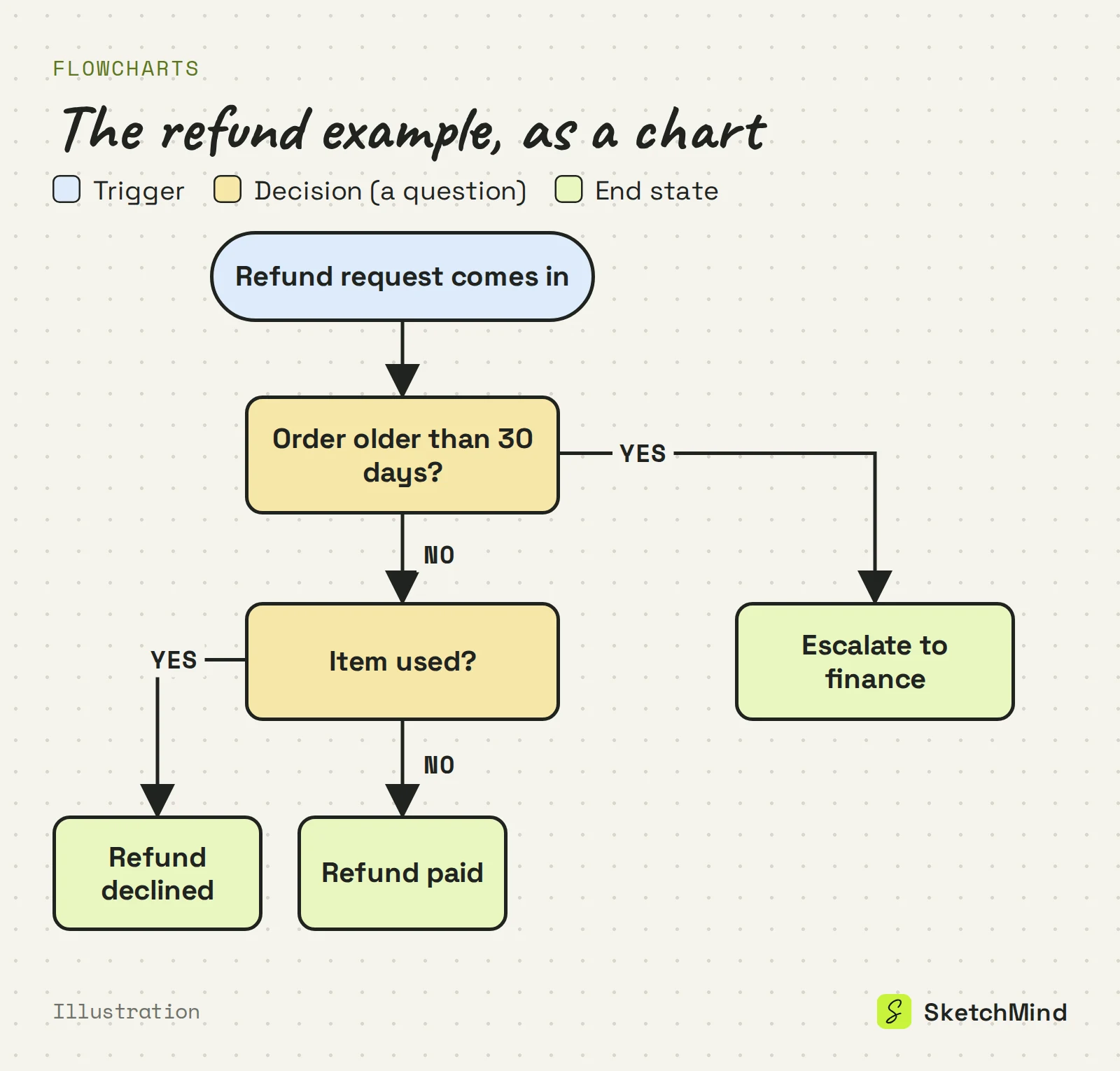
In SketchMind, an AI whiteboard, you open Create with AI, pick Flow and describe the process.
Edit the chart, not the prompt. The generated flow is normal board content: every box, label and arrow is editable, so a wrong label or a missing step is a direct edit. For bigger misses, select the frame, tap Rewrite and say what should change ("add an escalation branch after the second decision"). The rewrite changes that frame's generated content and keeps your own additions. When you need to walk a team through the process, Present from the board and use reveal steps to show one branch at a time.
Text-to-flowchart: four tools compared
|Tool|You describe it in|Extra input you can add|What comes back|
|Miro|A text description of a process or system (Miro AI)|An image of an existing diagram, converted to an editable one|An editable diagram on the board; AI use runs on monthly credits per plan|
|Lucidchart|A text prompt (AI diagram generator)|Not listed on the product page|A diagram in a Lucidchart document|
|draw.io|A short text query (Generate tool)|The current diagram file, page or selection|A generated diagram in the draw.io editor|
|SketchMind|Up to 3,000 characters, with Flow picked in Create with AI|One PDF (up to 5 MB) as context, or your board's existing content|One editable flow frame on your board, in about 20 seconds|
Based on each vendor's own documentation, checked September 2026. Features change, so check the vendor for current details.
A flowchart only earns its place when the process has real decision points. Otherwise another format is cleaner.
For the end-to-end picture of how work moves between teams, a flowchart is often too detailed. A process map is the better starting point there.
You can try it for free. The Free plan includes 5 AI boards and 5 AI rewrites, both one-time, with no credit card to start. Pro ($19/month) has 20 AI boards and 100 rewrites per month, and Pro Creator ($49/month) is unlimited within fair use (about 200 AI boards a month). Editing the chart by hand and presenting it from the board don't count against these limits. Describe a process you know well at app.sketchmind.app and see how close the first draft lands.
Last updated: September 28, 2026. Checked against the current SketchMind app.
Open Create with AI, pick Flow and describe the process in plain language, up to 3,000 characters. SketchMind builds one editable flow frame on your board in about 20 seconds.
Name the trigger, the possible end states, each decision as a yes/no question, and the steps in the order they happen. The AI follows the structure you give it.
Yes. Every element is normal, editable board content. For larger changes, select the frame and use Rewrite to say what should change; your own additions stay.
Yes. Attach one PDF of up to 5 MB as context in Create with AI instead of retyping the process.
Yes. The Free plan includes 5 AI boards (one-time) and needs no credit card to start.