

The five building blocks of a user flow diagram, how to draw one, and how to generate an editable flow from a plain-language description.
Every product has paths people follow to get something done: sign up, pay, invite a teammate, recover a password. A user flow diagram is how you see those paths before you commit design and build time to them.
Short answer: A user flow diagram is a map of the steps a user takes to complete one task in a product, drawn as screens, actions and decision points from entry to end state. It shows every path the user can take, including the ones that fail. You make one by writing down the trigger, the steps in order, each decision as a yes/no question and the possible end states, then drawing them as one connected flow.
A user flow diagram is a diagram of one task, seen from the user's side. It starts where the user enters (an ad, a link, an empty state), moves through the screens they see and the actions they take, branches at every decision, and ends at a clear outcome: task done, task abandoned, or an error. One flow covers one task. "The whole app" is not a user flow; "a new user creates their first project" is.
Teams draw them for two reasons. Before building, the flow exposes missing screens and dead ends while they are still cheap to fix. After launch, the flow is the map you hold against analytics: if 40% drop at the plan-selection step, you know exactly which box that is.
Five elements are enough for almost any flow. Keeping the vocabulary small is what keeps the diagram readable.
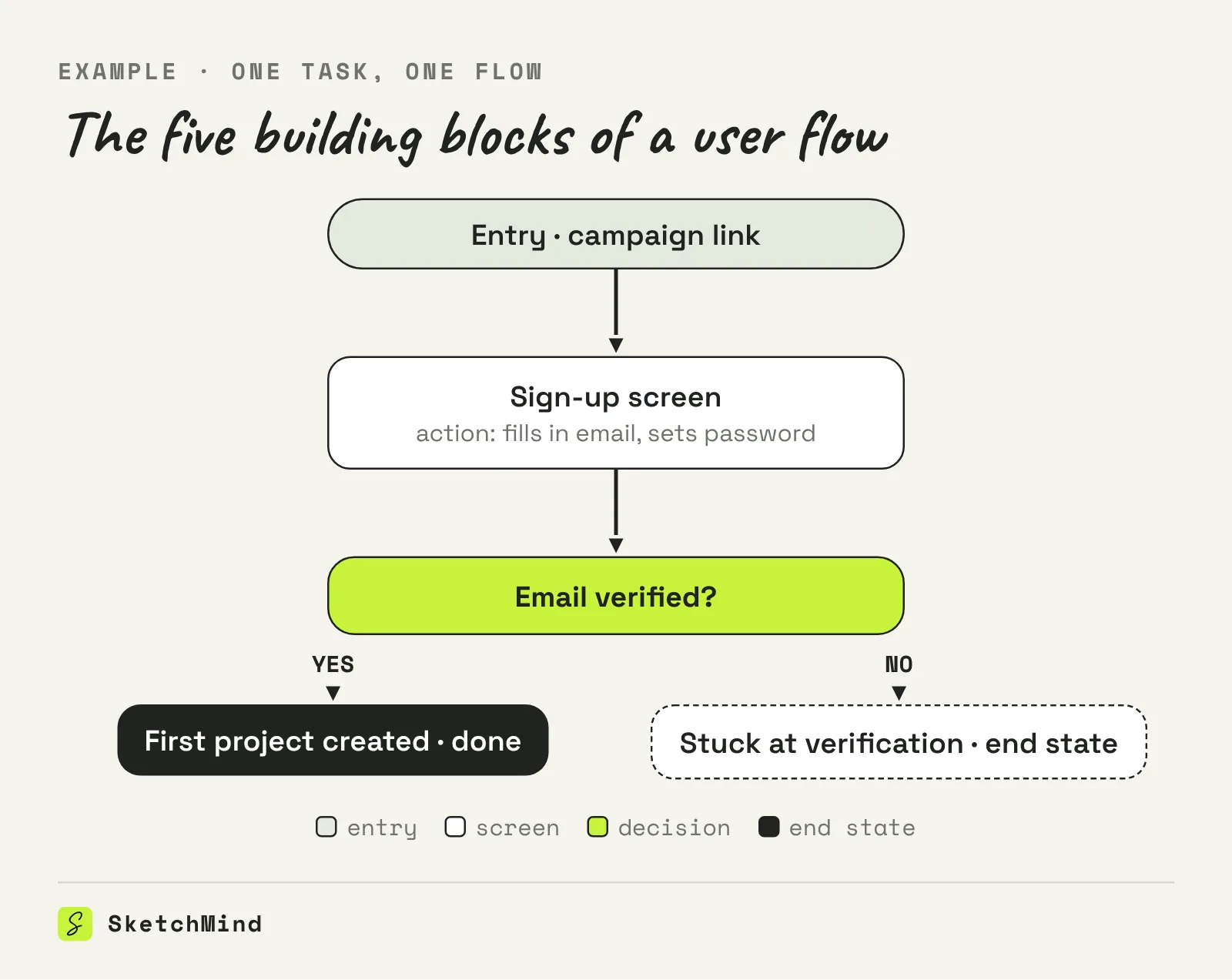
The fastest route is to write the flow as text first and only then worry about boxes. The logic decides whether the diagram is any good; the layout just makes it readable.
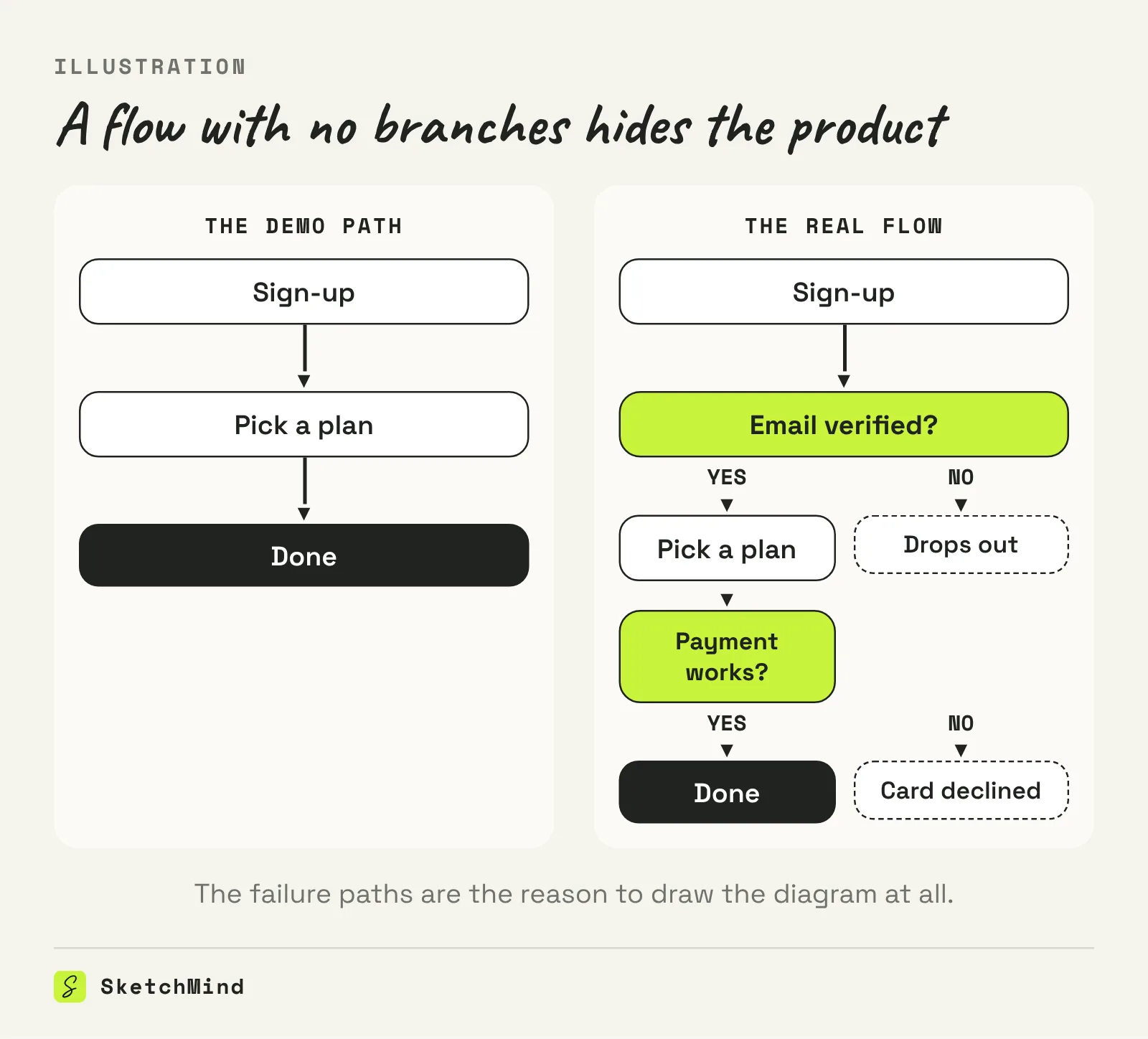
Step 4 is where most flows win or lose. A flow with no branches is a brochure: it shows the demo path and hides the product. The failure paths are the reason to make the diagram at all.
The three get mixed up because they all have arrows. They answer different questions.
Three formats, one line each
|Format|What it shows|Best for|
|---|---|---|
|User flow diagram|Screens, actions and decisions in one task|Designing or auditing a feature|
|User journey map|Phases, feelings and touchpoints over time|Understanding the customer, not the screens|
|Flowchart|Any process, not tied to a user or screens|Internal processes and system logic|
A user flow diagram is a flowchart with opinions: the boxes are screens, the actor is the user, and the end states are product outcomes. If what you are mapping has no user making choices, a plain flowchart or a process map is the better format.
If you can write the flow as text, you do not have to draw it at all. In SketchMind, an AI whiteboard, you pick Flow in Create with AI, describe the task in plain language and get one editable flow frame on your board in about 20 seconds. The same writing that makes a good flow makes a good prompt: the trigger, the steps in order, the decisions as yes/no questions, the end states including the failures. The prompt field takes up to 3,000 characters, you can attach one PDF of up to 5 MB (a spec, a research summary) and paste up to three public links, and the result is written from them. On a board that already holds notes or frames, "Use this board's content" lets the flow build on what is there. The frame stays editable, so renaming a screen or adding a branch is a direct edit, and you can present the flow straight from the board when you walk the team through it.
Last updated: October 8, 2026. Checked against the current SketchMind app.
A user flow maps the screens and decisions in one task; a user journey map covers the whole relationship over time, including feelings and touchpoints outside the product. Flows are for building, journeys are for understanding.
Rectangles for screens and actions, diamonds for decisions, rounded shapes for entry and end states. The convention matters less than using the same shape for the same thing throughout.
One task usually fits in 5 to 15 steps. If you pass 20, you are probably mapping several tasks at once; split them into separate flows.
Yes. In SketchMind you pick Flow in Create with AI and describe the task: trigger, steps, decisions as yes/no questions, end states. One editable flow frame lands on your board in about 20 seconds.
No. Draw them for flows with real branching or real risk: onboarding, payment, anything users fail at. A linear two-screen feature does not need a diagram.